


Are you looking to transfer files between computers on the same network with ease? This article will guide you through the process of transferring files between computers on the same network quickly and securely. Whether you need to transfer a large file quickly or move multiple files in one go, this article will provide you with the steps to do this seamlessly. Learn how to transfer files between computers on the same network with confidence, as we take you through the process step-by-step.
Set up a Network: Before transferring files between two computers, you must set up a network
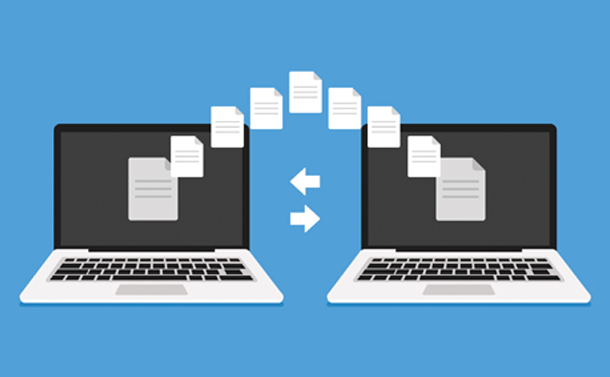
Setting up a network is essential to transferring files between two computers. Establishing a local area network (LAN) will allow you to access files, share resources, and communicate between computers. To begin, you will need to choose the type of network connection that best suits your needs, such as Ethernet, Wi-Fi, or a combination of both. You will then need to configure the settings on each computer, such as assigning IP addresses, setting up a firewall, and enabling file sharing. Once the network is established, you will be able to transfer files between computers with ease.
This can be done by connecting both computers to the same router with an Ethernet cable or using the same Wi-Fi network.

Transferring files between computers on the same network is made easy with the help of a router and an Ethernet cable or a Wi-Fi network. Whether it is for home or office use, this simple step-by-step guide will show how to quickly and securely transfer files between two computers on the same network.
Enable File Sharing: Once the network is set up, enable file sharing on both computers
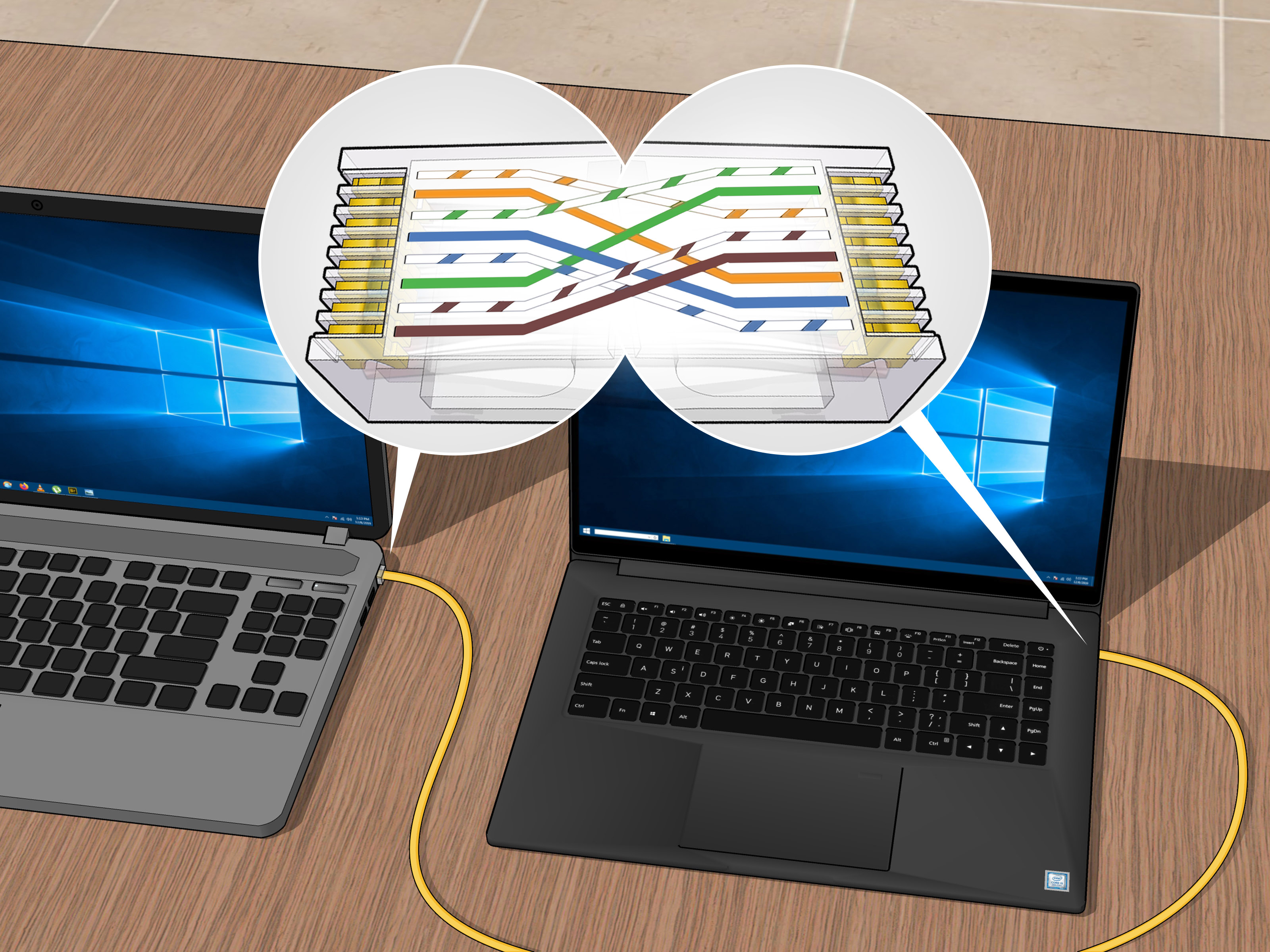
:To ensure secure file sharing between two computers on the same network, enable file sharing on both machines. This will enable you to quickly and easily transfer files between computers, without the risk of data being compromised.
This can be done by accessing the “Network and Sharing Center” and enabling network discovery, file and printer sharing, and public folder sharing.
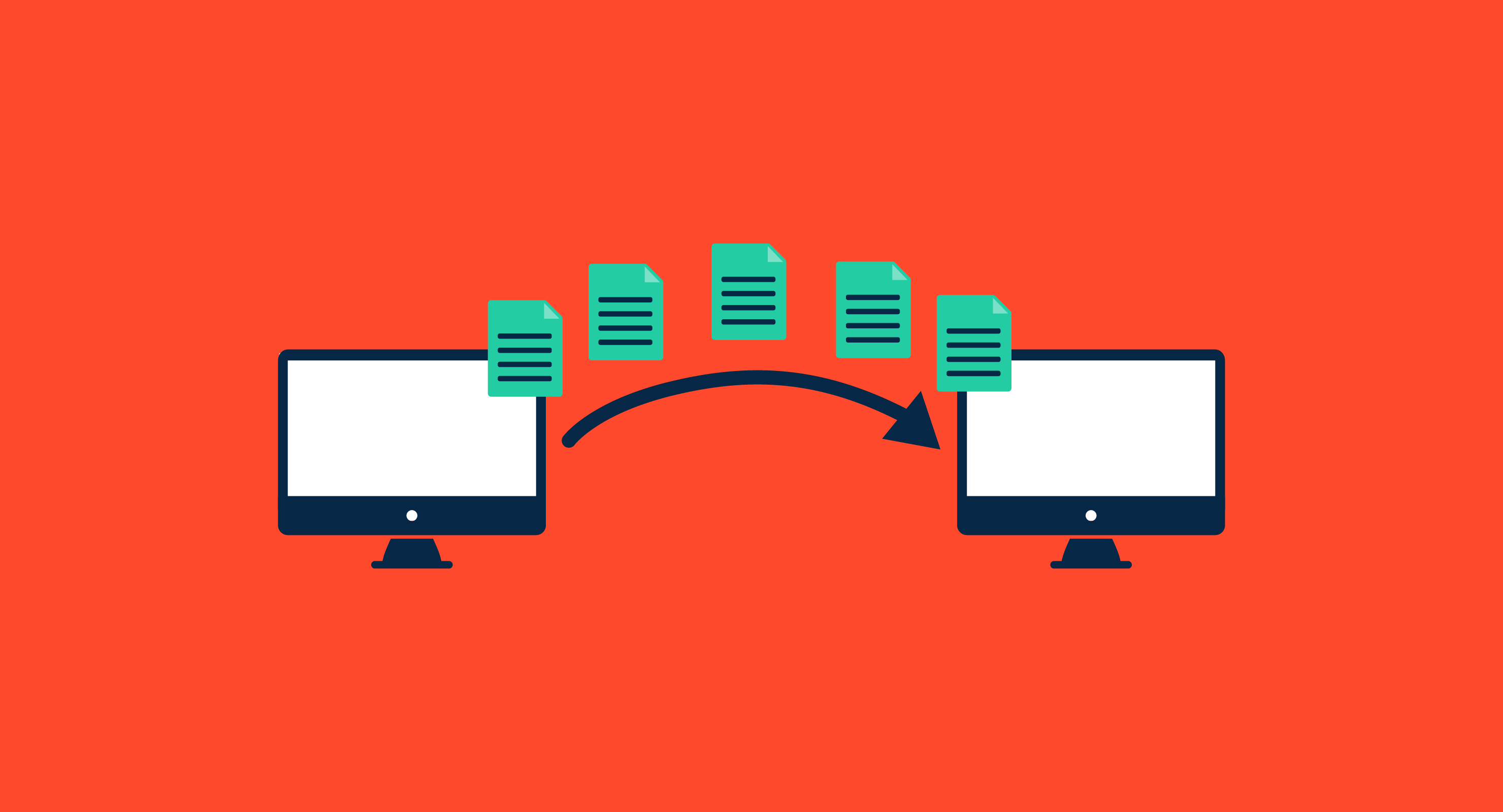
By accessing the “Network and Sharing Center” in the Control Panel, users can enable network discovery, file and printer sharing, and public folder sharing to easily transfer files between computers on the same network.
Create a Folder: Create a folder on one of the computers and give it a name
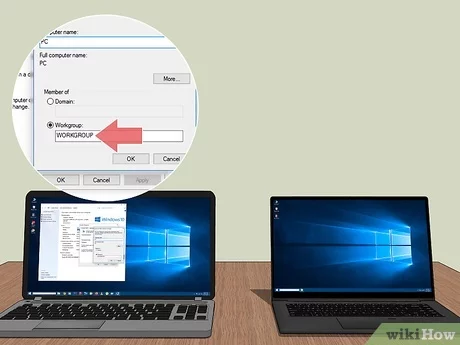
Creating a folder is an important first step in transferring files between computers on the same network. It is important to ensure the folder is named in a way that is easy to remember and identify, as this will make it easier to locate later. Once the folder has been created, it can be used as a storage location for files that need to be shared between two or more computers.
This will be the place where the files will be transferred.

Sending files between computers on the same network is a breeze – just use the right tools to move your files quickly and securely!
Share the Folder: Right-click on the folder and select “properties”

Sharing folders on the same network is a great way to transfer files between computers. To do this, right-click on the folder and select “properties” to open the folder’s settings window. From this window, you can easily control who can access and modify the folder’s contents. With just a few clicks, you can give your friends or colleagues access to the files they need.
Under the “sharing” tab, check the box next to “share this folder” and click “apply” and “ok”.
When enabling file sharing between computers on the same network, it is important to select the “Share this Folder” option in the Sharing tab and then click on “Apply” and “OK” for the changes to take effect.
Access the Folder: On the other computer, open the “Network” folder and locate the folder that was just created
To easily transfer files between two computers on the same network, first create a shared folder on one computer and then access the folder on the other computer through the “Network” folder. Once you have located the shared folder, you can simply drag and drop the files you want to transfer into the folder. This is a quick and easy way to transfer files without having to use a USB drive or other external storage device.
Double-click to open it.
Double-clicking to open a file on the same network is a quick and easy way to transfer information between computers. Transferring files between computers on the same network is a straightforward process that requires just a few clicks, allowing users to quickly and securely move data between connected devices.
Copy and Paste: Copy the files you want to transfer and paste them into the folder that was created.

Copying and pasting files from one computer to another on the same network is an easy process with the right steps. To transfer your files, first create a folder on the destination computer, then copy and paste the files you wish to transfer into the folder.

GIPHY App Key not set. Please check settings